Advanced
- Settings
- Keyboard shortcuts
- Command line
- Installing on many computers
- Where settings are kept
- Portable use
Settings
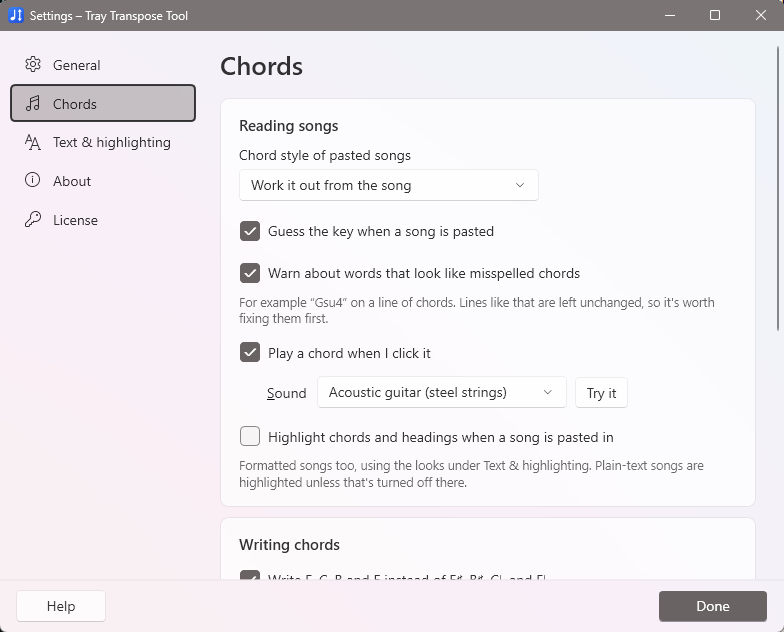
Open File → Settings, or right-click the icon in the notification area and choose Settings. Changes take effect straight away.
| Page | What's there |
|---|---|
| General | The shortcut that opens the Tray Transpose Tool from any program; starting with Windows; copying the result automatically; whether closing the window keeps the program in the notification area. |
| Chords | Which chord style pasted songs are read in; guessing the key; typo warnings; playing chords when clicked, and the sound (guitar, piano, organ and others); highlighting every pasted song; avoiding E♯ B♯ C♭ F♭; Nashville numbers or Roman numerals; words allowed on chord lines. |
| Text & highlighting | The font for plain-text songs; highlighting plain-text songs; wrapping long lines; the look of titles, headings and chord lines; the words that mark a heading. |
| About | Version, installation, the settings file, and Reset to defaults. |
| License | Trial status, buying, activating and deactivating. See Trial and full version. |
Keyboard shortcuts
| Keys | What they do |
|---|---|
| Ctrl+Alt+T | From any program: open the Tray Transpose Tool with the song on the clipboard (change it in Settings → General) |
| Ctrl+T | Transpose from the From key to the To key |
| Ctrl+↑ / Ctrl+↓ | Up or down a half step |
| F5 | New song from the clipboard |
| Ctrl+Enter | Copy the whole song and hide the window |
| Ctrl+Shift+C | Copy the whole song |
| Ctrl+H | Highlight chords and headings |
| Ctrl+Z / Ctrl+Y | Undo / redo (typing and transpositions) |
| Ctrl+B, I, U | Bold, italic, underline |
| Esc | Hide the window |
| F1 | This manual |
Command line
When the Tray Transpose Tool is already running, these commands go to the running copy.
| Option | What it does |
|---|---|
--show | Open the window with the song on the clipboard |
--tray | Start in the notification area without opening the window |
--settings | Open Settings |
--quit | Exit the Tray Transpose Tool |
--activate <key> | Activate a license key on this computer |
--install | Install or update it on this computer (shows the install window) |
--uninstall | Remove it; add --quiet to skip the questions |
--help | List these options |
Installing on many computers
For a school, church office or music department:
- Run
TrayTranspose.exe --installand choose For everyone on this PC. It installs toC:\Program Files\Tray Transpose Tooland adds a Start menu shortcut and an entry in Windows Settings → Apps. - Activate each computer with
"C:\Program Files\Tray Transpose Tool\TrayTranspose.exe" --activate TTT-XXXXX-XXXXX-XXXXX-XXXXX, run as the person who will use it. Each license covers two computers; ask us about more. - Remove it silently with
"C:\Program Files\Tray Transpose Tool\TrayTranspose.exe" --uninstall --quiet.
Where settings are kept
Settings are kept in %AppData%\TrayTranspose\settings.json for each Windows user. Problems are logged
in error.log in the same folder; include it if you contact us. Settings → About →
Open folder opens it.
Portable use
To keep the program and its settings together, for example on a USB stick, create an empty file named
TrayTranspose.settings.json next to TrayTranspose.exe. Settings are then saved there
instead. The trial and the license are tied to the computer and the Windows user, so a portable copy still needs
activating on each computer it's used on.