Tray Transpose Tool user manual
The Tray Transpose Tool changes the key of a song with chords, using the Windows clipboard. Copy the song in the program you already use, transpose it, and paste it back. Your fonts, colors and layout stay as they were.
The short version
- Download the Tray Transpose Tool and open it. Choose Install.
- In Word, a web page or any program, select a song with its chords above the words, and copy it (Ctrl+C).
- Click the Tray Transpose Tool icon next to the clock, or press Ctrl+Alt+T. Choose the new key in To, and choose Transpose.
- Go back to your program and paste (Ctrl+V). The transposed song is already on the clipboard.
That's all most people ever need. The rest of this page explains each step.
1. Install the Tray Transpose Tool
It runs on Windows 10 and Windows 11. You don't need to install anything else first.
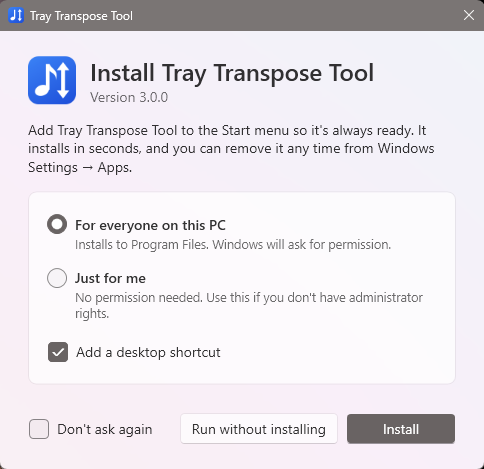
- Download TrayTranspose.exe (about 72 MB) and open it.
- It offers to install itself. Choose one:
- For everyone on this PC: the usual choice. Windows asks for permission; choose Yes.
- Just for me: if you don't have administrator rights on this computer.
- Choose Install. A few seconds later, the Tray Transpose Tool opens. You'll find it in the Start menu and on your desktop.
If Windows says “Windows protected your PC”, see What to do about the “Windows protected your PC” message.
2. Copy a song
Open the song in whatever program you keep it in: Word, a web page, an email, a PDF, or your worship software. Select the whole song, or just the part you need, and copy it with Ctrl+C.
The Tray Transpose Tool expects the usual chord-sheet layout: each line of chords sits above its line of
words. Chords written inside the words in square brackets, such as [G]Amazing [C]grace, work
too.
3. Transpose it
Click the Tray Transpose Tool icon in the notification area, at the right end of the taskbar (choose the small ^ arrow there if you don't see it). Or press Ctrl+Alt+T, which works from inside any program. The window opens with your song in it.
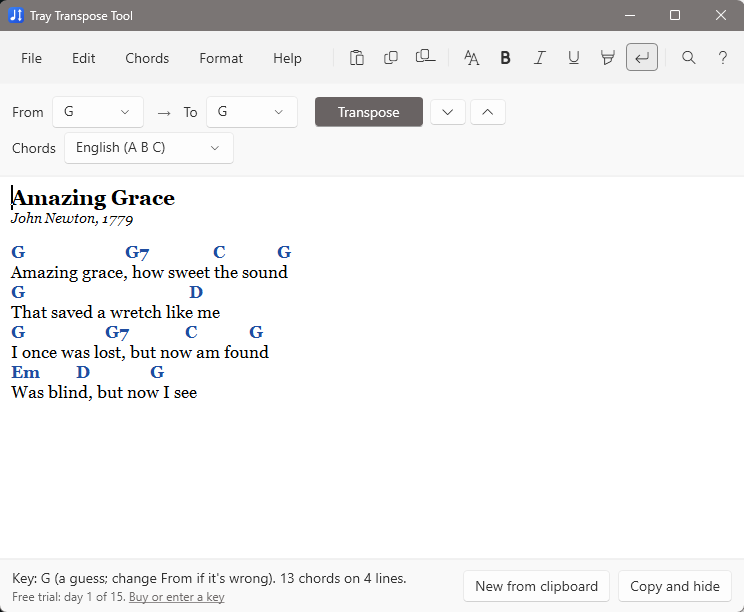
- Check From: it shows the key the Tray Transpose Tool thinks the song is in. If that's wrong, choose the right one.
- Choose the new key in To.
- Choose Transpose (or press Ctrl+T).
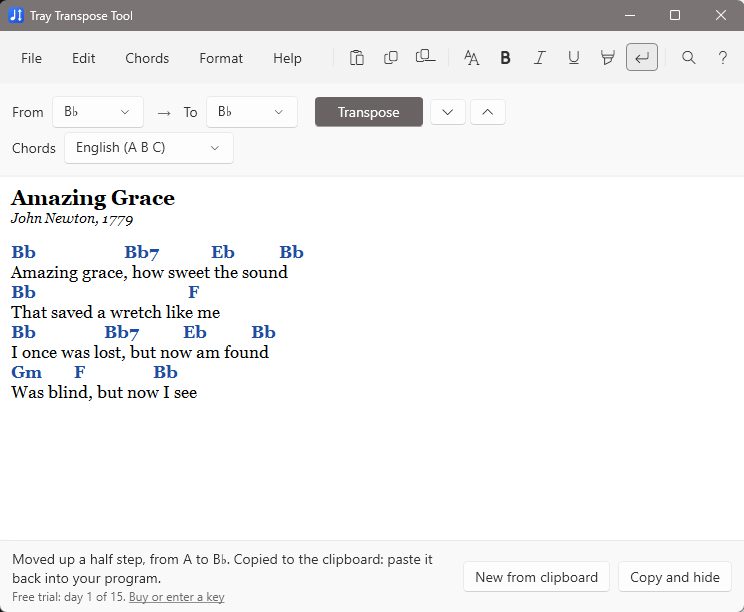
To move up or down a half step at a time, use the arrow buttons next to Transpose, or press Ctrl+↑ and Ctrl+↓.
4. Paste it back
The transposed song is already on the clipboard. Go back to your program and paste it with Ctrl+V, either over the original or somewhere new.
When you're done, choose Copy and hide (or press Esc to just hide the window). The Tray Transpose Tool keeps waiting in the notification area for the next song.
Where to next
- Transposing songs: which chords it understands, chord styles, typos, and formatting.
- Trial and full version: the 15-day trial, buying, and activating your license.
- Troubleshooting and questions: if something isn't working as you expect.
- Advanced: Settings, shortcuts, the command line, and installing on many computers.