
Does your church or organization need an on-screen countdown clock? Are you paying for video files with built-in countdown timers, and frustrated by their lack of flexibility and high price? TimeToStart will be perfect for you.
TimeToStart does just one thing: display a countdown clock on your screen. Once you select a time and optional caption, the clock appears, counts down, and then disappears. That's it!
Free to use, with paid support only.
Download TimeToStart Windows installer, about 3 MB
Features
Unlike video file countdowns, TimeToStart is customizable. You can:
- pick any ending time or number of minutes to count down
- set the font style, text color, and shadow color
- drag it into whatever screen position you want
- add a short customized message (like “Starting in...” or “Get Ready!”)
- set an automatic drift around the screen, at different speeds
- select a translucent amount for a see-through appearance
Since the clock appears without any background (a transparent window), you can place it over any background image or video you want. Simply show any content you already own, launch the clock, and you're done! You can even change the time remaining, caption, font, colors and more at any time, without first closing the clock.
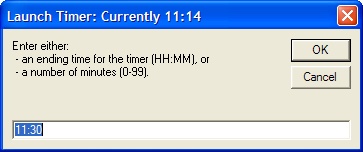
Time selection
When you first launch TimeToStart, you're asked for the ending time, either as minutes remaining or an actual clock time. It automatically suggests the next reasonable 15-minute increment, so most of the time you can just click OK.
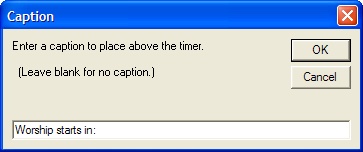
Caption
Next, you're asked for an optional caption. Leave it blank, or enter any text you wish to display.

Basic timer
The timer then appears. It remembers your previous display settings: the same screen location, font, colors and transparency. All digits are outlined in the shadow color for easy visibility over any background.

Transparency
Decide just how transparent the clock appears over your background. This works best over static images.
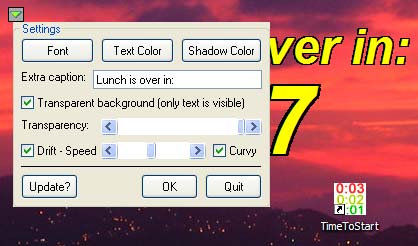
Settings
Move the mouse over the digits and a small control box appears. Click it to adjust font, colors, and more. The control box hides itself after a few seconds.
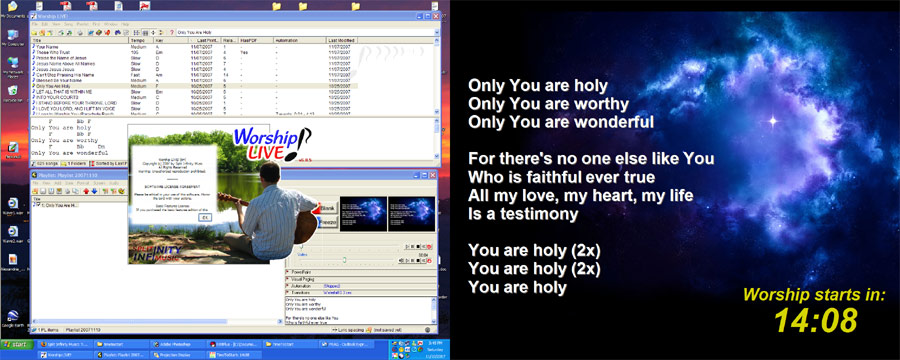
Dual monitor support
TimeToStart remembers its position anywhere on the Windows extended desktop, which makes it perfect for digital projection systems in large venues. It works with your existing software and hardware, and simply adds the countdown clock to whatever you're already doing.
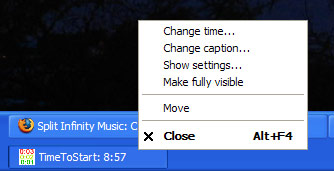
Other options
Right-click the TimeToStart taskbar icon for convenient options, so you can adjust settings on the fly without your audience seeing you work. The taskbar icon also shows the time remaining at all times.
Download and installation
Download the installer about 3 MB
Save the file, then double-click it to start the installation. Please also review the license agreement. The program installs as a demo; use the unlock information below to unlock it.
Unlock information and support
TimeToStart has been retired and is no longer actively maintained, so it's free to use, and so is the unlock. We recognize it's still valuable to many people. However, support is not free. Support is billed at $20 per half hour, with a $20 minimum and $50 maximum per incident, paid via PayPal.
I understand there is no free support and wish to see the unlock information.
- User name
- No Support Free Unlock
- Key code
- JSMRTWURHX
Read the TimeToStart help file online, or see our support notes for free technical tips.
System requirements
This software was developed for Windows XP and newer. If your system can run any modern version of Microsoft Windows, it can run this program. Run the installer as administrator, and you may need to set compatibility mode for Windows XP. Our support notes explain how.